Mobile Controls for Dodge or Die
Touch movement, camera handling, and UI tips for surviving one-hit arenas on phone and tablet.
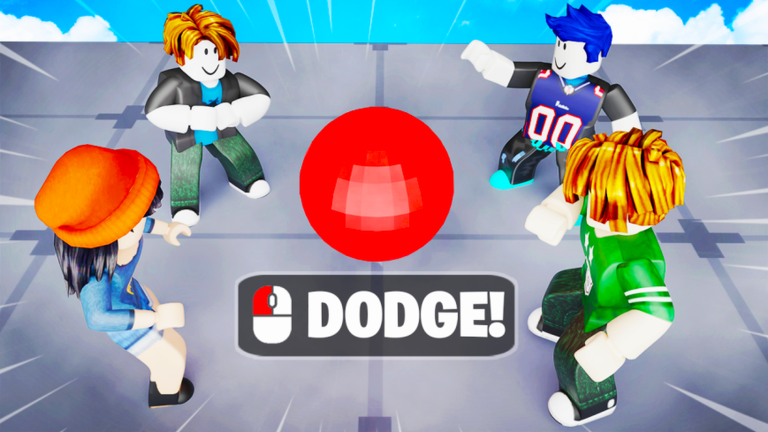
Playing Dodge or Die on a phone or tablet means trading keyboard precision for touch flexibility. The game runs on standard Roblox mobile controls — a virtual movement stick, drag-to-rotate camera, and on-screen buttons for jumping or interacting when the experience requires it. AllOut Games did not ship a radically different mobile scheme; your success still comes from reading ball trajectories and repositioning before a one-hit elimination.
This guide explains what to expect on mobile, how to keep the camera usable during chaos, and where critical menus hide on smaller screens. Exact layouts can shift when Roblox updates its mobile client or when you change dynamic thumbstick settings in Roblox account preferences, so treat platform defaults as the baseline and adapt if your device behaves differently.
Movement stick and strafing
Most mobile sessions use a floating or fixed virtual joystick on the left side of the screen. Push in the direction you want to move; release to stop. Strafing sideways is often safer than running backward because backward movement can be slower on some Roblox avatars and camera angles make rear dodges harder to read.
Because there is no dedicated dodge button, your “dodge” is purely positional. Invest Cash from codes into movement upgrades early — extra speed translates directly into wider escape margins on touch, where fine corrections are harder than on mouse and keyboard.
If your thumb drifts off the stick during intense rounds, enable Roblox’s dynamic thumbstick option so the joystick re-centers where you first touch. That reduces accidental walks into ball paths when you panic-press the wrong screen zone.
Camera control on touch
Camera rotation typically uses drag anywhere on the right half of the screen (outside UI buttons). You need periodic camera adjustments to track balls entering from off-screen angles. Over-rotating wastes time; under-rotating leaves you blind to side spawns.
A practical habit: set the camera once per wave, then focus on movement until the arena shifts again. Constant spinning makes it harder to judge depth when multiple balls overlap. Lower your finger drag speed in Roblox settings if small swipes throw the camera too far.
Tablets offer more visible arena space than phones, which is a genuine advantage in Dodge or Die. If you have both, tablet play often feels closer to PC awareness simply because more tiles stay on screen at default zoom.
UI, codes, and shop buttons on small screens
The gift icon in the top-right corner opens code redemption — the same entry point as PC. On narrow phones the icon can sit close to other HUD elements, so tap deliberately to avoid opening the wrong panel mid-match. Redeem codes in the lobby between rounds when you are not actively dodging.
Crate openings, tool management, and movement upgrade shops use Roblox’s standard touch buttons. If a button does not respond, your thumb may be registering as a camera drag instead of a tap. Lift your camera finger before pressing shop icons, or pause in a safe lobby area before spending Cash.
For a full list of working promo strings and redemption troubleshooting, visit the Codes Hub and how to redeem codes if that page exists on the wiki.
Mobile-specific survival tips
Touch players should prioritize predictable movement patterns over flashy zig-zags. Sharp reversals are harder to execute cleanly when the stick is imprecise; smooth arcs around ball clusters usually survive longer.
Use headphones if your device supports spatial audio cues — even subtle sound can hint when a ball enters from behind. Pair audio with occasional camera checks rather than permanent spinning.
Join less crowded servers when learning. Mobile reaction times vary by device refresh rate and network latency; private or lower-population lobbies give you room to practice camera habits before jumping into packed arenas.
When mobile controls feel “wrong”
If movement stops responding, Roblox may have opened the system keyboard or an overlay — close it fully before resuming. iOS and Android also differ in how they handle gesture navigation bars at the screen edge; accidental home-swipe exits are more common on full-screen phones.
Reinstalling Roblox is rarely needed. Rejoin the Dodge or Die server first, then restart the Roblox app if inputs stay stuck. Persistent issues may be device-specific; compare with the Controls Hub PC section to confirm you are not missing a platform-only limitation.
Related pages
- Controls Hub — PC, console, and shared UI overview
- Getting started — first-hour progression on any platform
- Codes Hub — redeem
1KCCU,250K, andDODGEfor Cash - Tools Hub — crate tools that help when pure dodging fails
- Review — honest take on the mobile Roblox experience
Frequently Asked Questions
Quick answers to the most common questions.
Can I play Dodge or Die on mobile?
Yes. The game runs through the standard Roblox mobile app with virtual joystick movement and touch camera controls, the same foundation used across most Roblox experiences.
Where is the code button on mobile?
Look for the gift icon in the top-right corner of the HUD. Tap it, open Codes, enter your string, and press Redeem to receive Cash rewards.
Is mobile harder than PC for Dodge or Die?
Many players find touch less precise for fast strafing and camera checks, but movement upgrades and practice close much of the gap. Tablets often feel easier than small phones due to screen size.
How do I stop the camera from spinning accidentally?
Lift your right-hand finger before tapping UI buttons, reduce camera sensitivity in Roblox settings, and avoid dragging across the whole screen during movement.
Do mobile players use the same tools and upgrades?
Yes. Cash, crates, movement upgrades, and tools work identically across platforms. Progress is tied to your Roblox account, not your device.
Should I change Roblox mobile control settings for this game?
Optional tweaks like dynamic thumbstick or lower camera sensitivity often help more than hunting for hidden in-game binds. Start with defaults, then adjust if drifts or overshooting bother you.